
Have you recently tried to save a picture from Google Images, only to find that the download option is missing or the image won’t save to your computer? You’re not alone. This article will explain common reasons why Google image downloads fail, practical ways to resolve these issues, and a reliable bulk image downloader for saving multiple images more efficiently.

1. Why Can’t I Download Images from Google Anymore?
Several factors may explain why you can no longer download images from Google, including the following common issues:
- Google Images Updates : Changes to Google’s interface may affect how image previews and download options are displayed.
- 網站限制 : Some third-party websites limit direct access to their images or prevent downloads.
- Browser Problems : Outdated browsers, corrupted cache files, or conflicting extensions can disrupt image downloads.
- Internet Connection Problems : A slow or unstable internet connection can cause images to load incompletely or downloads to fail.
- Unavailable Images : Images may have been deleted from their original websites or moved to different URLs.
- Access and Copyright Restrictions : Some websites require users to sign in or follow licensing terms before accessing or reusing images.
Google still allows image downloads in most cases, but issues with source websites, browser settings, or downloading methods may prevent you from saving pictures successfully.
2. Solutions to Resolve the “Can’t Download Images from Google” Problem
If Google Images downloads aren’t working, the following solutions may help you resolve the issue quickly.
1) Open the Original Image
Click the image in Google Images and visit its source website, then rright-click the original image and select Save image as to download it directly.
2) Try a Different Browser
Browser settings or compatibility problems may prevent downloads from working correctly. If you use Chrome, try Firefox or Microsoft Edge. If the image downloads successfully in another browser, check your original browser’s settings and extensions.
3) Disable Browser Extensions
Browser extensions, such as ad blockers and privacy tools, may interfere with image downloads. Temporarily turn off browser extensions, reload Google Images, and try downloading the image again. Alternatively, open an Incognito window with extensions disabled and test the download.
4) Clear Your Browser Cache
Cached files or corrupted browsing data can cause download issues, so clear Chrome’s cache, reload Google Images, and remove cookies if necessary.
5) Check Your Internet Connection
A poor internet connection can cause image downloads to fail, so reload the page, check your network, restart your router if needed, and make sure your device has sufficient storage space.
6) Check Your Download Settings
If downloaded images are missing, check your browser’s download folder, look for incomplete files, and ensure your browser or security software hasn’t blocked them.
7) Visit the Source Website Directly
If clicking an image produces an error, the original website may restrict direct access or require authentication. Visit the website through its normal pages and locate the image there. If the image has been removed, search for another available source instead.
8) Check Image Permissions and Availability
Not every image found through Google is freely available for downloading or reuse. Some pictures are protected by copyright, while others require permission or a particular license. Check the source website’s terms and use images according to their licensing conditions.
3. Try the Ultimate Bulk Image Downloader: Imaget
Downloading dozens or hundreds of images individually can be tedious. Imaget is a desktop bulk image downloader that helps you save multiple images from supported webpages, making image collection faster and easier to manage.
主要特點 Imaget :
- Download multiple images, entire galleries, and GIFs from a webpage with a single click.
- Collect images through webpage links, multiple browser tabs, or lists of image URLs.
- Download images in their original quality at resolutions up to 8K.
- Apply image filters to quickly find and select the files you want.
- Save images in your preferred format, such as PNG, JPG, or WebP.
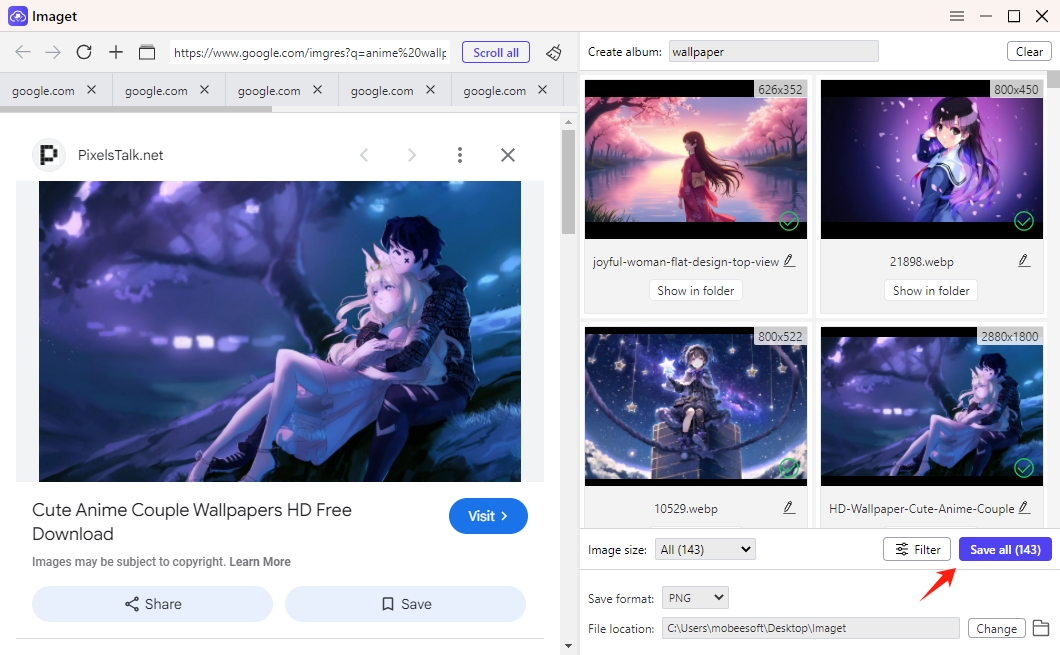
How to download Google images with Imaget :
- 下載並安裝 Imaget , then open it and familiarize yourself with its available downloading options.
- Collect the image or page URLs and paste them into Imaget , then scroll the pages to let the application identify available images and display the results on the interface.
- Choose the relevant pictures and apply any available filtering options.
- Select a destination folder and download all chosen images by clicking the “Save all” button.
4。結論
If you cannot download images from Google anymore, the issue may stem from changes to Google Images, restrictions on third-party websites, browser extensions, cache problems, or an unstable internet connection. Opening the original image, trying another browser, clearing cached data, and checking download settings are practical ways to troubleshoot the problem.
However, if you regularly download large numbers of images, fixing the immediate issue is only part of the solution. For a more efficient approach, try Imaget , which lets you download multiple images at once instead of saving each file individually.